Guide for Restoring a Backup to a Different Project
1. Add Backup Credentials
2. Create a new project with a larger k8s cluster where we want to upload our backup
3. After adding the Backup Credentials and creating the new k8s cluster, enable Backup on both k8s clusters
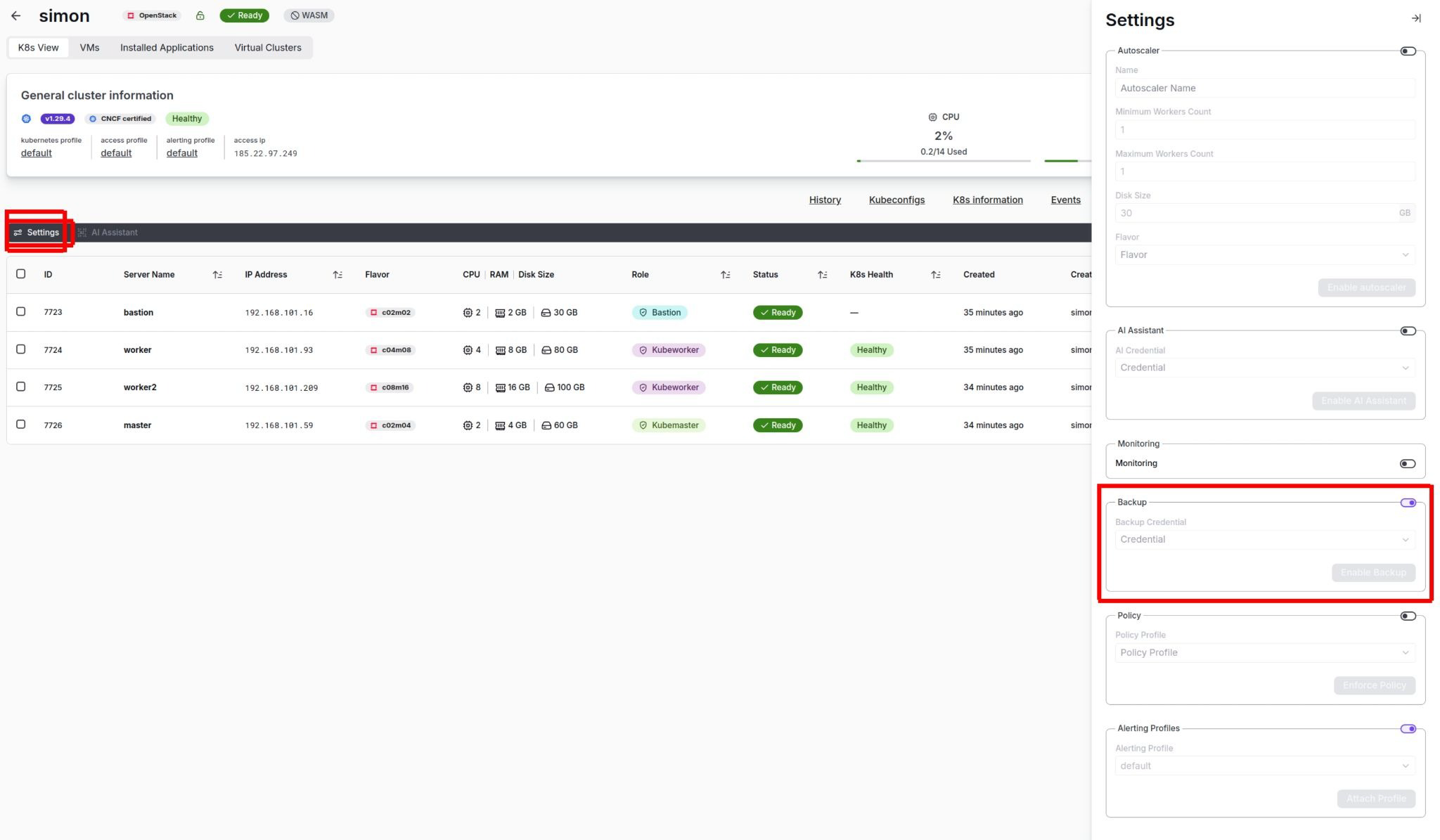
Enable Backup
4. Subsequently, the Backup Policy will become accessible, where we will create our backup
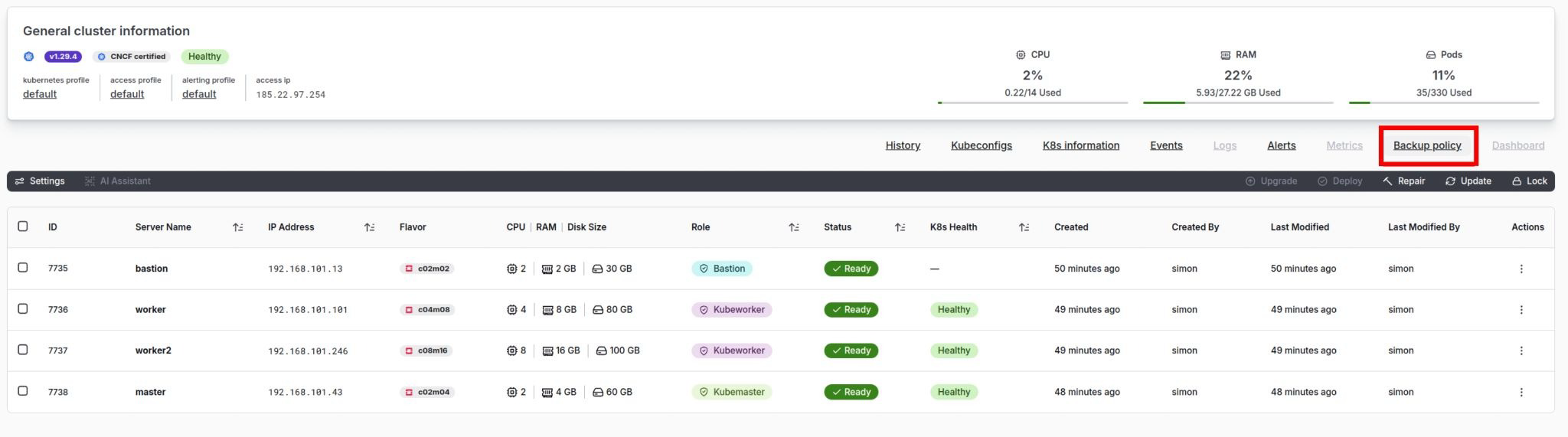
Backup policy
5. In the top right, there is an “Add Backup Policy” button Enter the Name (the name of our backup), Retention Period (how long our backup will be stored), Cron Period (how often the backup will be saved), and subsequently, which Namespaces we want to back up
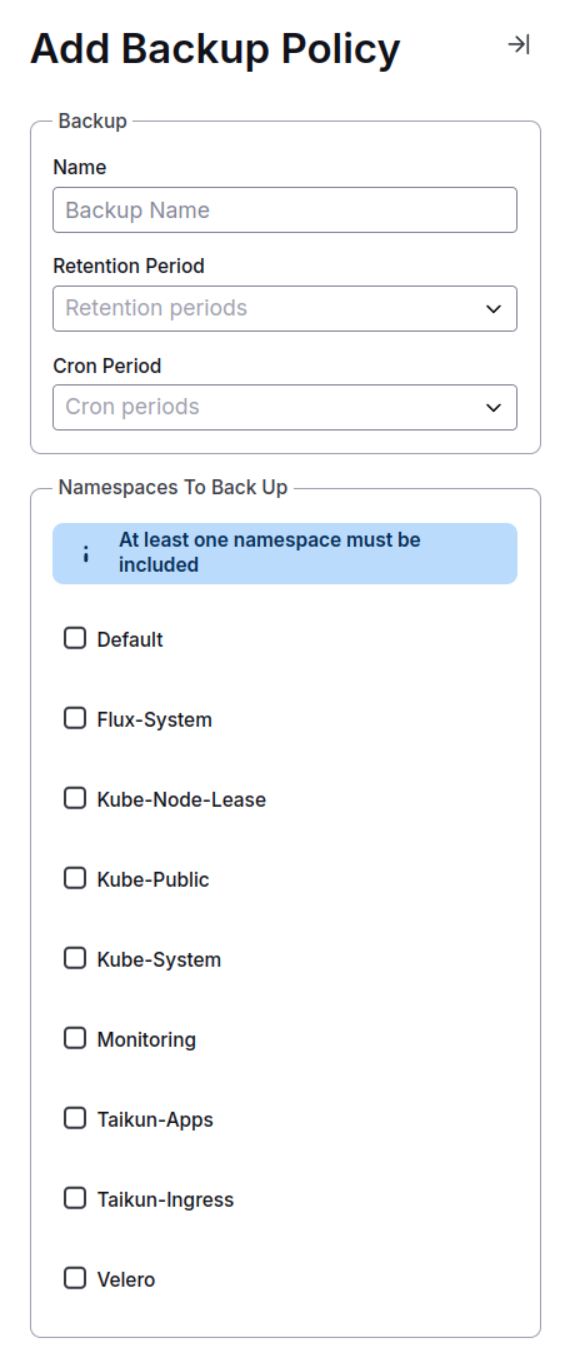
Add Backup Policy
In Schedules, we can find the settings for our backup policy
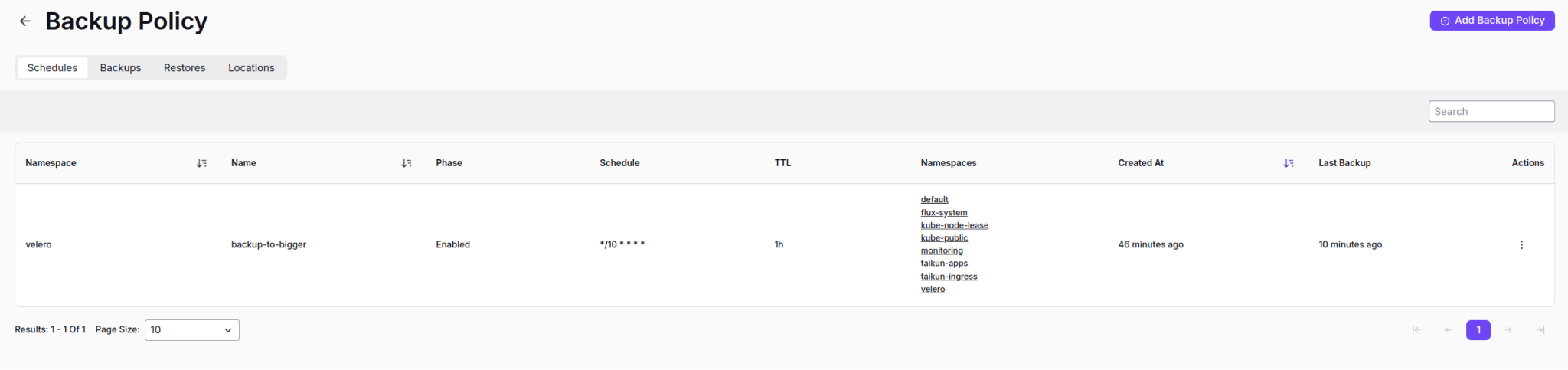
New Backup Policy
6. After creating the backup policy, switch to the second project where we want to upload our backup - "Enter" the Backup Policy again, where we will find the Locations section - In the Locations section, find “Import Backup Source” in the top right

Import Backup Source
Here, select our project from which we want to import the backup.
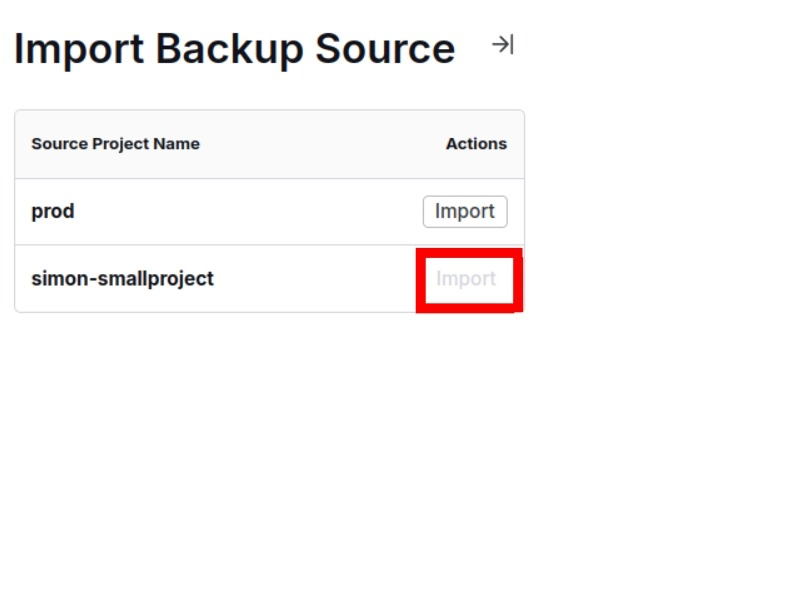
Import
7. We can check that our new backup has been uploaded into the project's backup policy
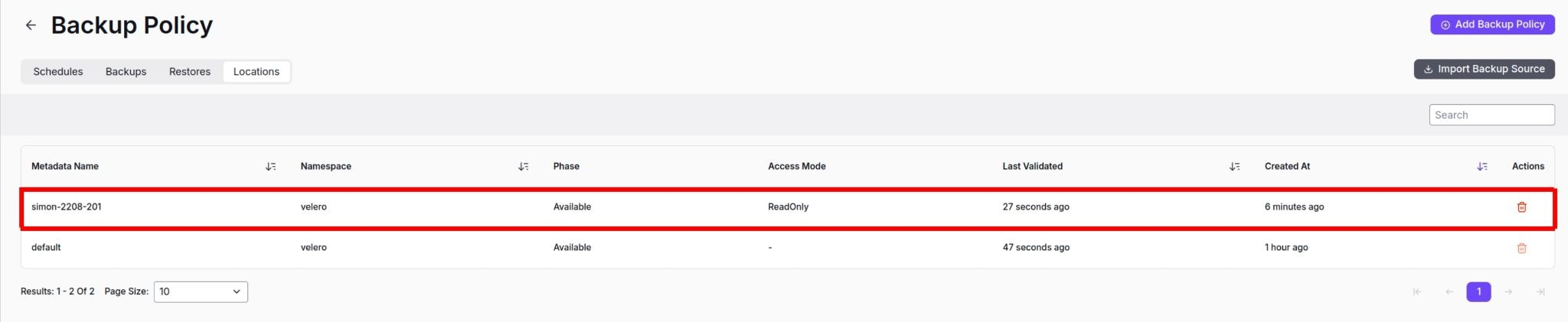
New Backup
8. Subsequently, under Backups, find our uploaded backup from the old project, and on the right, look for actions where we select Restore Backup
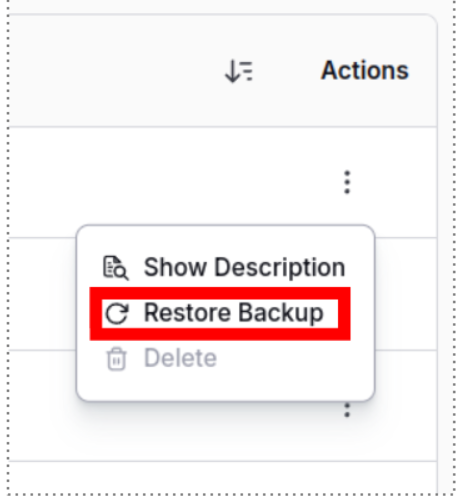
Restore Backup
9. Our backup from the old project has started importing into the new one, and under Restores, we can find our backup and see what phase it is in